
Appearance
Review Walkthrough
This document provides a step-by-step guide for reviewers to navigate the GrantFlow review process, from accessing the review dashboard to completing milestone reviews.
Overview
The review process in GrantFlow consists of two main types of reviews:
- Submission Reviews: Initial grant proposal reviews where reviewers vote to approve or reject submissions
- Milestone Reviews: Reviews of specific milestones submitted as part of funded grants
Step 1: Accessing the Review Dashboard
Start by navigating to the Review section from the main dashboard navigation.
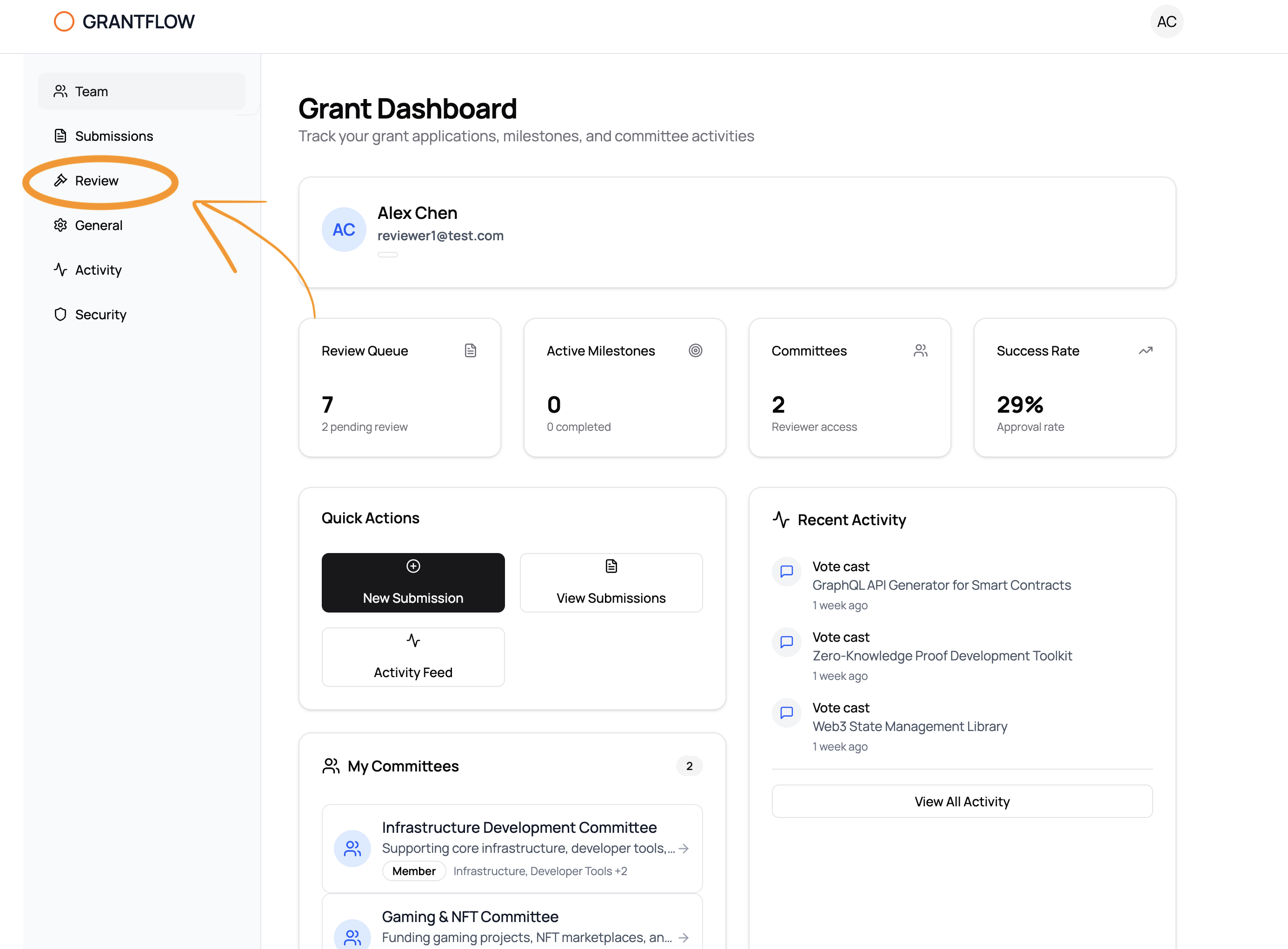
The Grant Dashboard provides an overview of your review queue, active milestones, committees, and success rate. To access the review functionality, click on Review in the left sidebar.
Step 2: Review Dashboard Overview
Once in the Review Dashboard, you'll see a comprehensive view of all pending actions requiring your attention.
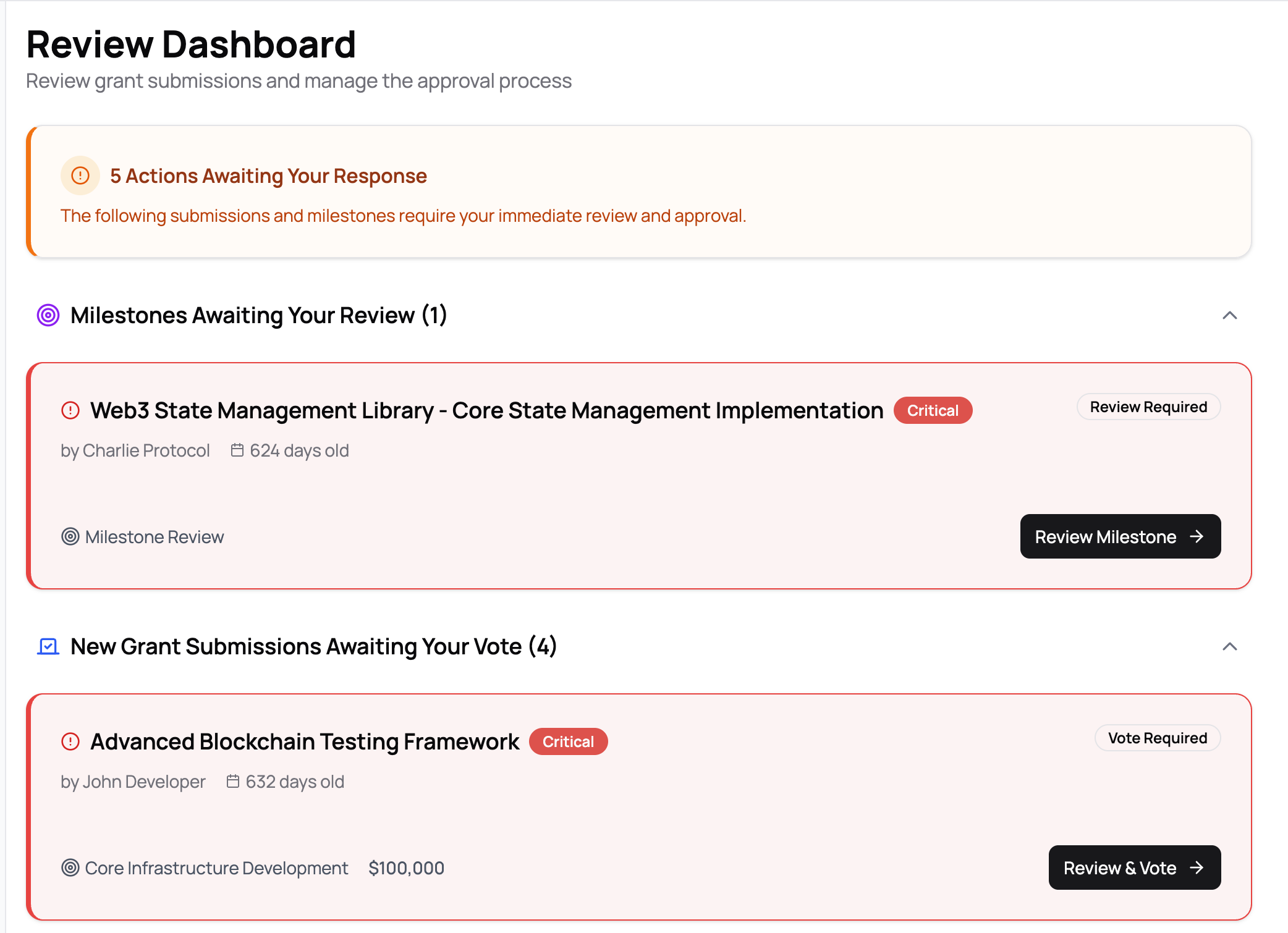
The dashboard displays:
- Summary Alert: Shows the total number of actions awaiting your response
- Milestones Awaiting Your Review: Lists milestones that need your review
- New Grant Submissions Awaiting Your Vote: Lists new submissions that require your vote
Each item is color-coded to indicate urgency:
- Red (Critical): Items older than 14 days
- Orange (Urgent): Items older than 7 days
- Blue (Normal): Items less than 7 days old
Step 3: Reviewing a Submission
Click on any submission card to review it. You'll see detailed information including the submission title, submitter information, committee details, grant program information, and funding amount.
Casting Your Vote
When reviewing a submission, you'll need to cast your vote using the review dialog.
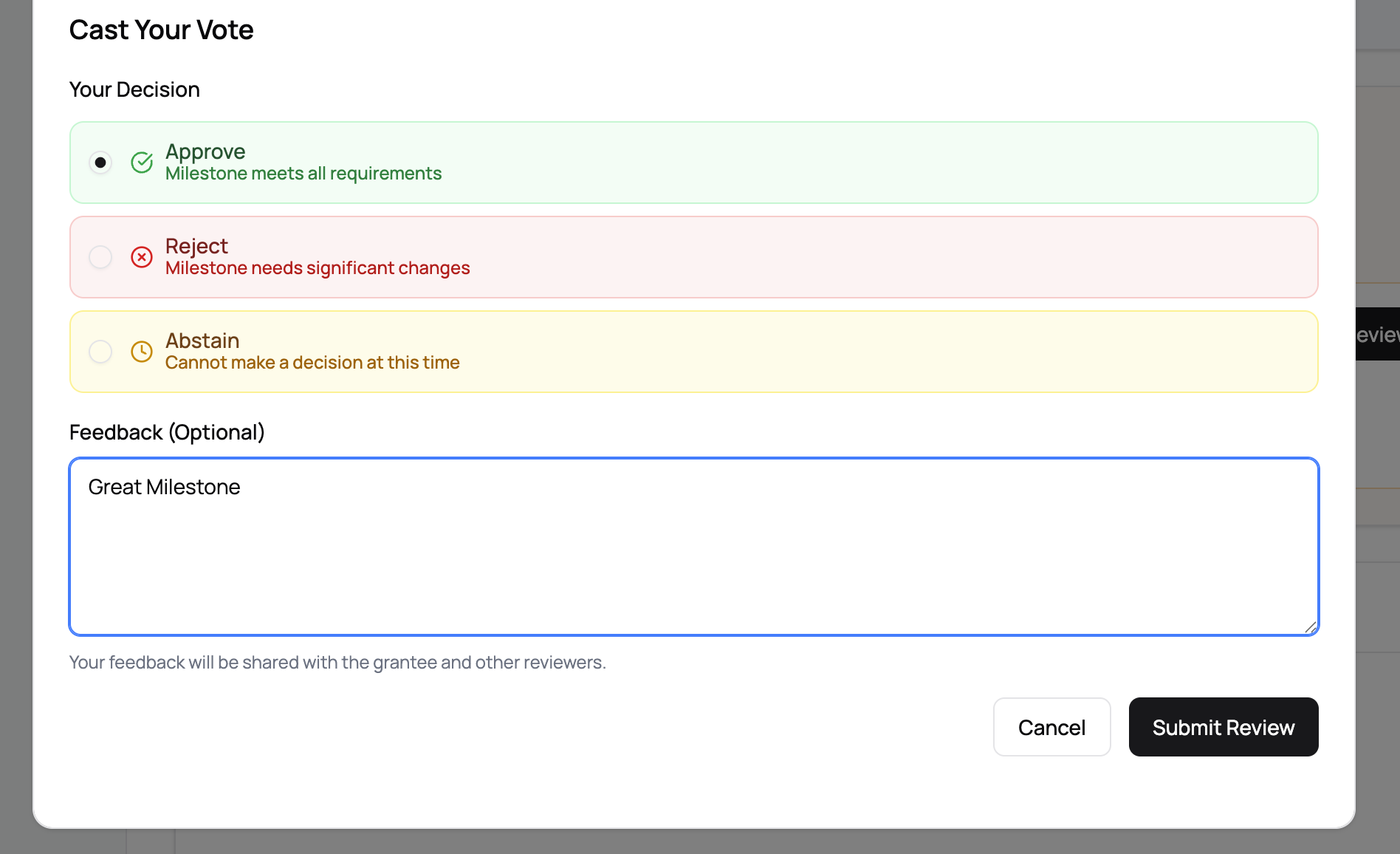
Your Decision Options:
- Approve: Milestone meets all requirements (green checkmark)
- Reject: Milestone needs significant changes (red X)
- Abstain: Cannot make a decision at this time (yellow clock)
Feedback (Optional): You can provide feedback that will be shared with the grantee and other reviewers.
Click Submit Review to submit your vote, or Cancel to return without voting.
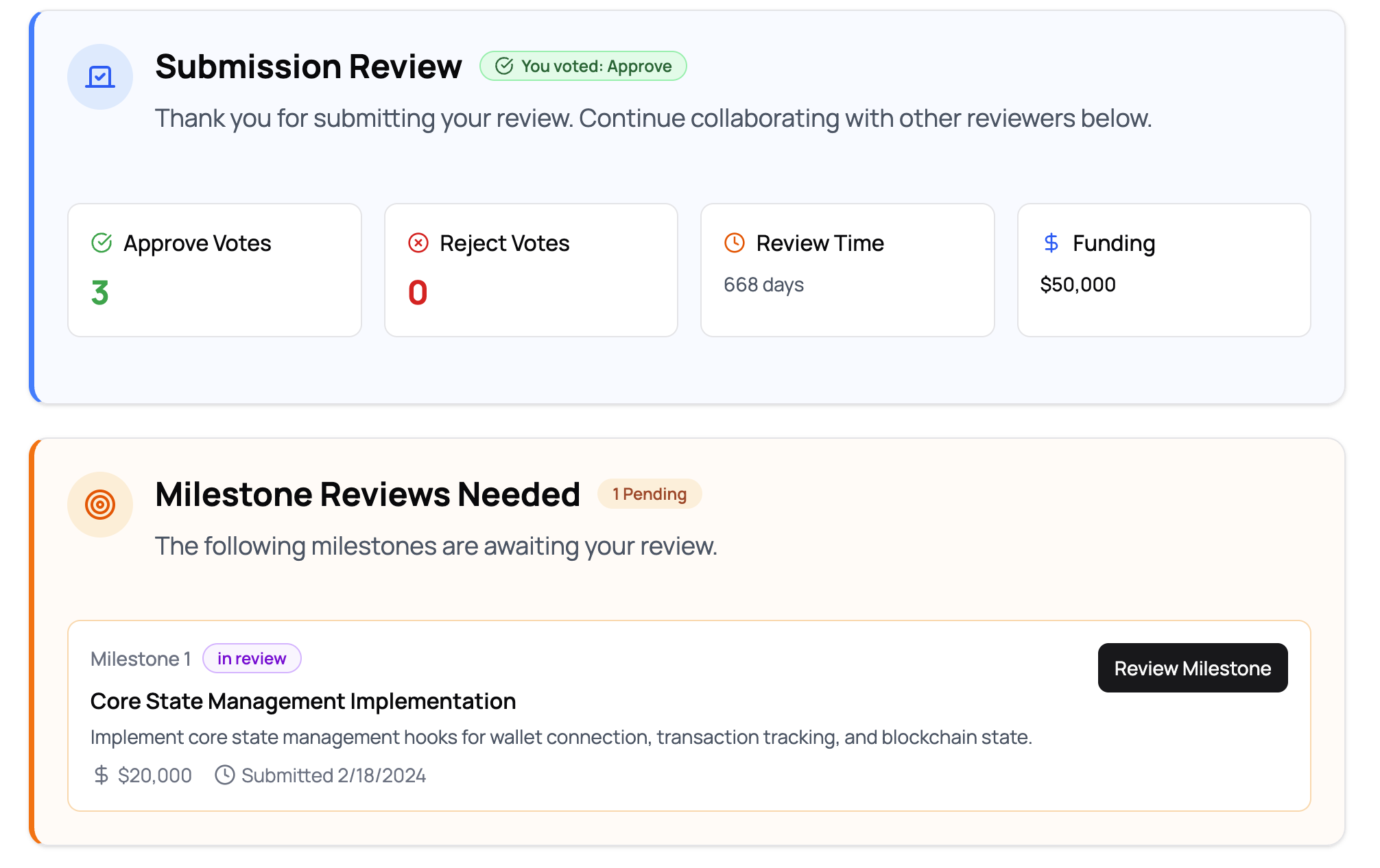
Viewing Submission Review Status
After submitting your review, you'll see the submission review status page.
This page displays:
- Your Vote Status: Confirmation that you voted (e.g., "You voted: Approve")
- Voting Statistics:
- Approve Votes count
- Reject Votes count
- Review Time (days since submission)
- Funding Amount
- Milestone Reviews Needed: List of milestones that still require your review
Step 4: Viewing All Milestones
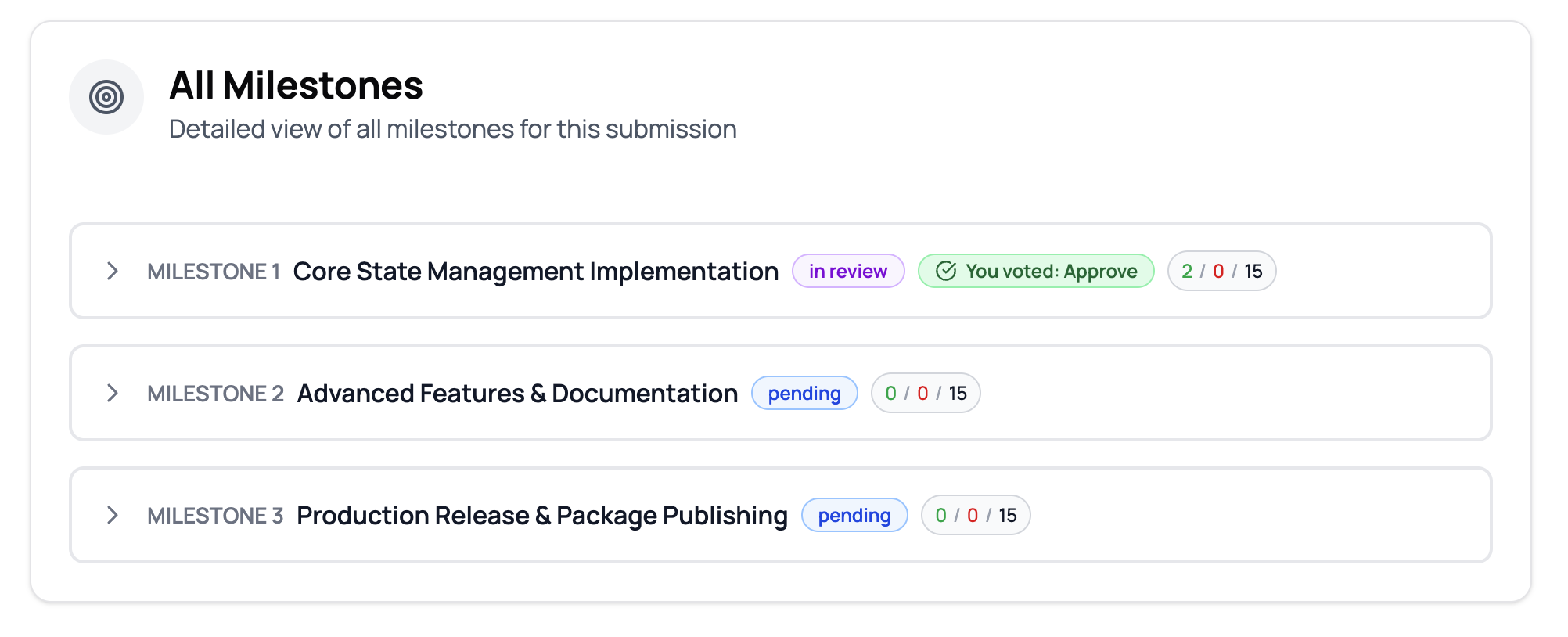
For submissions with multiple milestones, you can view an overview of all milestones.
The milestones view shows:
- Milestone Name and Number: e.g., "MILESTONE 1 Core State Management Implementation"
- Status Badge: Current status (e.g., "in review", "pending")
- Your Vote Status: If you've already voted (e.g., "You voted: Approve")
- Voting Progress: Shows approve/reject/total votes (e.g., "2 / 0 / 15")
Click on any milestone to view its details and cast your review.
Step 5: Reviewing a Milestone
Click Review Milestone on any pending milestone to open the milestone review dialog.
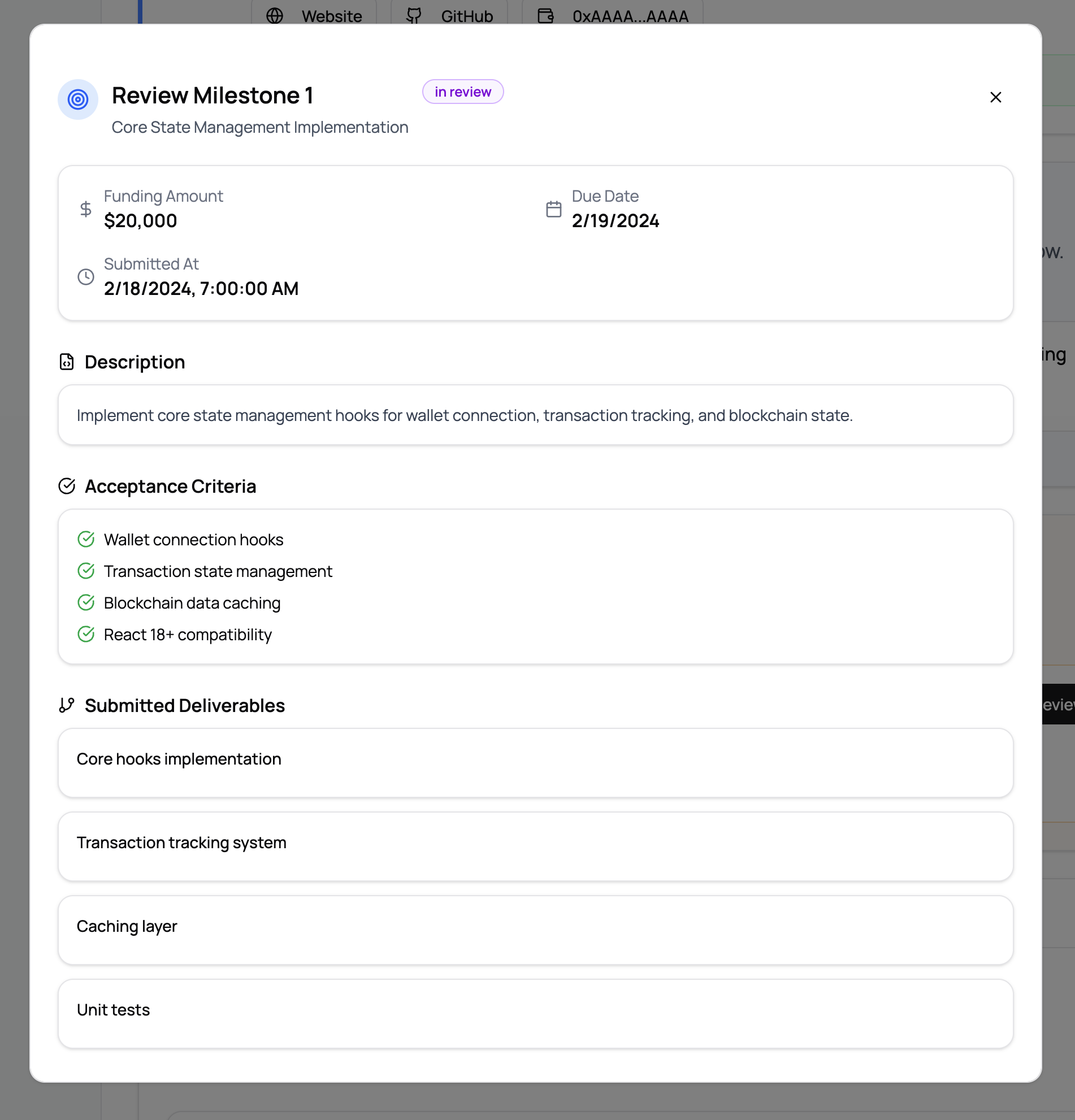
The milestone review dialog displays:
Key Information
- Milestone Title: e.g., "Core State Management Implementation"
- Status Badge: Current review status (e.g., "in review")
- Funding Amount: The allocated funding for this milestone
- Submitted At: Date and time when the milestone was submitted
- Due Date: Deadline for completing the review
Milestone Details
- Description: Detailed description of what the milestone entails
- Acceptance Criteria: List of requirements that must be met (displayed with checkmarks)
- Submitted Deliverables: Files, links, or other deliverables provided by the grantee
Reviewing the Milestone
- Review the description and acceptance criteria
- Check the submitted deliverables
- Cast your vote (Approve/Reject/Abstain)
- Add optional feedback
- Submit your review
Best Practices
- Timely Reviews: Aim to complete reviews within 7 days to avoid urgent status
- Thorough Review: Check all acceptance criteria and deliverables before voting
- Constructive Feedback: Provide helpful feedback when rejecting or requesting changes
- Follow Up: Monitor submission and milestone progress after your review
- Collaboration: Review discussions and feedback from other reviewers to ensure consistency
Navigation Tips
- Use the Review Dashboard as your central hub for all pending actions
- Sections can be collapsed/expanded using the chevron icons
- The urgency color coding helps prioritize which items need immediate attention
- The "All Caught Up!" message appears when you have no pending actions
Troubleshooting
Q: I don't see any pending actions, but I know there should be some. A: Ensure you're a member of the relevant committee and have reviewer permissions.
Q: Can I change my vote after submitting? A: Contact the committee administrator if you need to change a submitted vote.
Q: What's the difference between a submission review and a milestone review? A: Submission reviews are for initial grant proposals. Milestone reviews are for specific deliverables within approved grants.
For technical support or questions about the review process, contact your committee administrator.